Upload to TFDS
Trimble Field Data Service (TFDS) is a cloud-based service that enables the transfer, synchronization, and management of field data between Trimble devices, office software, and cloud storage. It is commonly used to streamline workflows in surveying, construction, and geospatial applications by allowing users to send and receive data files directly from the field to the office and vice versa.
To use the Upload to TFDS feature, you must have a Trimble ID. You can create one by visiting connect.trimble.com. Make sure to sign in with your Trimble ID to access this feature, and to be connected to the Internet.
 Upload a Project
-
Tap
 >
>  Finalize & Export to open the dialog, and check the Export Project option.
 -
Select Cloud:
-
If you are not connected to the Internet, a warning pops up asking you to check your Internet connection.
-
If you are not signed in, a dialog pops up asking you to sign in using your TID. Once you sign in, Perspective retrieves the projects you have on Trimble Connect.
-
-
In the Upload Type drop-down list, select Trimble Field Data Service.
-
In the Project drop-down list, select an existing project in Trimble Connect to which you want the data to be exported and stored.
-
In the Published Name field, enter a name for the data to be exported that will display in your project in Trimble Connect. By default, the project name is used as the export name.
-
Tap Finalize.
Perspective exports the entire project as a TDX format file in a temporary folder. You can stop the export at any time by tapping Cancel in the Finalize & Export dialog. Once the export is complete, Perspective uploads the temporary folder to your Trimble Connect project. The following notifications may appear:
-
While the upload is in progress:
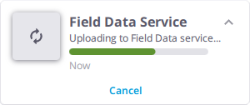
-
If you cancel the upload:
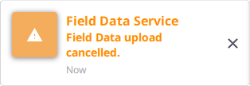
-
If the Internet connection is lost:
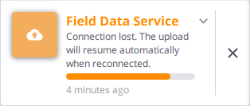
-
When the upload is successful:
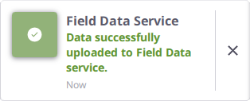
-
View the Project in Trimble Connect
Trimble Connect is a web application available at: https://web.connect.trimble.com. If you are not connected to Trimble Connect, a connection prompt appears. Sign in using your Trimble ID. After signing in to Trimble Connect, the Projects page displays all available projects. A project acts as a container for all the data and files you bring into Trimble Connect. Select the project you exported to.
The Trimble Field Data Service (TFDS) extension application is embedded within the Trimble Connect Web application. To enable the extension, go to Settings > Extensions, and toggle the Field Data extension switch to on.
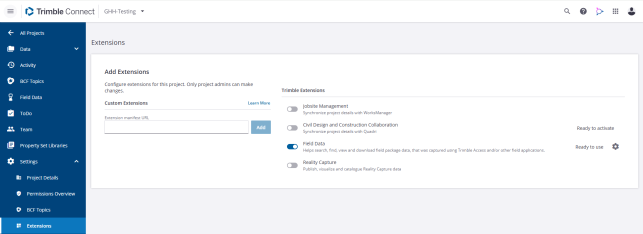
Once it is enabled, click the Field Data icon to display the Field Data page. In the Field Data panel, click  and select the project you exported to.

See the Trimble Connect Field Data Help for more information.
Import the Project in Trimble Bussiness Center
-
In TBC, create a new project or open an existing project.
-
Select Connected Workspace in Home > Data Exchange to display the Connected Workspace window.
-
If you have a Trimble Connect account and you are signed in with your Trimble ID, the Connected Workspace window displays immediately. Otherwise, you will be prompted to log in with your Trimble ID.
-
If you do not have a Trimble Connect account, visit connect.trimble.com to create one.
-
-
In the Projects panel, select the project containing data you want to import.
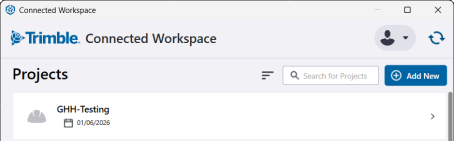
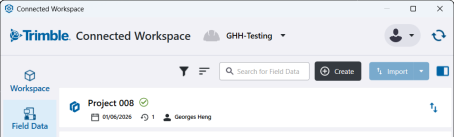
The project opens. Every project includes three work areas (Workspace, Field Data and Explorer. The Field Data allows you to upload, view, download, and import data from Trimble Perspective into your current TBC project related data files.
-
Select Field Data.
-
Select the project you exported to Trimble Connect, and choose between Import and Download.
See Share Projects and Data Using Connected Workspace in the Trimble Business Center documentation for more information.
